
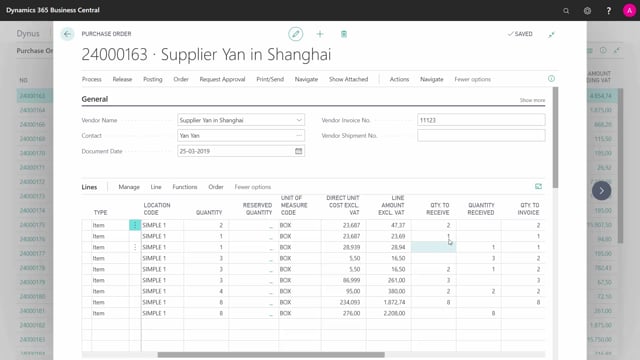


The Purchase Order Statistics in Microsoft Dynamics 365 Business Central give you a quick overview of what is still open on a purchase order. You can compare the original order quantity against what you have received and what you have invoiced, and you can check an incoming shipping bill or invoice against the figures before you post anything.
The statistics split the numbers into three parts. The General section shows the original total order. The Invoicing section shows everything that is still open in the Quantity to Invoice column. The Shipping section shows everything that is still open in the Quantity to Ship column. The statistics also show the balance to the vendor.
Reading the quantity columns on a purchase order
A purchase order can have many lines with different quantities, and the quantities rarely match across the board. On the order lines you see your original quantities, and you can see that some lines have already been received while others still have a Quantity to Receive.
The same applies on the invoicing side. Quantity Invoiced is often different from Quantity Received, and both can differ from the original Quantity. In practice this means that Quantity to Invoice, Quantity to Receive, and Quantity are three separate numbers, and you need to read them as such.
What the Purchase Order Statistics show
When you navigate to the order statistics from the purchase order, you get both financial information and quantity information in one place. The numbers are grouped so you can see at a glance how far the order has progressed.
- General applies to the Quantity column and shows the original total order, meaning the full order amount.
- Invoicing shows everything that is still open in your Quantity to Invoice column.
- Shipping shows everything that is still open in your Quantity to Ship column, that is the remaining amount left to ship.
Because the Invoicing and Shipping sections show the remaining amounts, they are useful when documents arrive from the vendor. If you receive a shipping bill or an invoice, you can check it against the figures in the statistics before you act on it. The statistics also include the balance to the vendor, so you can see where the order stands financially.
Q&A
Where do I find statistics for an open purchase order in Business Central?
Open the purchase order and navigate to the order statistics. There you get information on open purchase orders, including both financial figures and quantities.
Why is Quantity Invoiced different from Quantity Received?
The two figures track different steps in the process. You can receive goods without having invoiced them, and the original order Quantity can differ from both. That is why Quantity to Invoice, Quantity to Receive, and Quantity are shown as separate numbers.
What do the General, Invoicing, and Shipping sections mean?
General applies to the Quantity column and shows the original total order. Invoicing shows everything still open in the Quantity to Invoice column. Shipping shows everything still open in the Quantity to Ship column, which is the remaining amount left to ship.
How can I check a vendor’s shipping bill or invoice against the order?
Use the Shipping and Invoicing sections in the order statistics. They show the remaining amounts, so when a shipping bill or an invoice arrives you can compare it against the figures before posting.