


Business Central handles the full flow of buying and selling items in a few connected steps. You create an item, purchase it onto inventory, invoice the purchase, then sell it to a customer and draw it from inventory. Each step generates its own entries that you can trace afterwards.
You always create an item before you can buy or sell it. You fill in the required fields marked with a red asterisk, including the costing method, general product posting group, inventory posting group, and unit price.
Business Central separates quantity handling from amount handling. On the purchase side you post a receipt for the quantity and an invoice for the amount. On the sales side you post a shipment for the quantity and an invoice for the amount. You can post both in one step or as two separate steps.
Every transaction creates entries you can follow up on. You get item entries, customer entries, vendor entries, and general ledger postings. You pay vendors and receive customer payments through the payment journal, which posts general ledger entries and closes the flow.
Creating a new item in Business Central
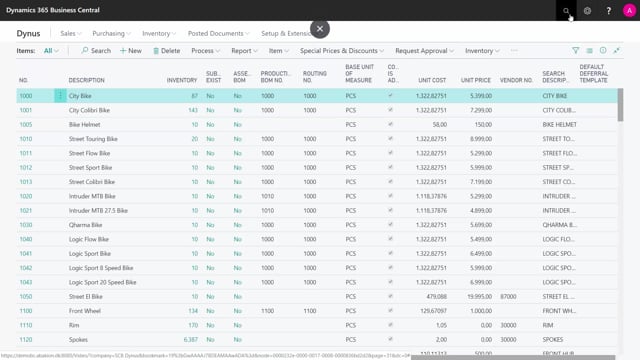
Before you can purchase or sell anything, the item has to exist in your inventory. In this example we create a bike helmet with item number 1005.
When you create a new item, some fields fill in automatically and some do not. You have to complete all the required fields, which are marked with a red asterisk. For this item you go down and set:
- The base unit of measure, which is pieces
- The costing method
- The general product posting group
- The inventory posting group
- An expected purchase price, if you already know it
- A unit price, which is the price you sell for. In this case 150 in local currency
Once the item is set up, it shows on the item list with 0 in inventory. It is now ready to be purchased.
Creating a purchase order and receiving items onto inventory
To get the item into your warehouse, you create a purchase order. You select the vendor you have agreed to buy from, then add the item line.
In this example we buy 10 pieces and enter the price agreed with the vendor, which is 56 in local currency. You also set the location code. Here it is “Simple 1”, which is the location used for this scenario.
When you post the receipt, you are posting the inventory movement. You receive the item onto inventory, which creates the item entry and the inventory handling. After posting, the item card shows 10 on stock, with quantity received at 10 and quantity to invoice at 10.
Invoicing the purchase order
The invoice from the vendor usually arrives later. You enter the vendor’s invoice number on the purchase order and post the invoice with the correct unit cost.
The actual cost can differ from what you first entered. If the vendor invoices 58 instead of 56, you reopen the purchase order, change the unit cost to 58, and post the invoice.
This is where the distinction between receiving and invoicing matters. Receiving handles the quantity. Invoicing handles the amount. After posting, you find a posted purchase invoice in your history so you can see exactly what happened. The item list now shows 10 on inventory, ready to sell.
Creating a sales order and selling the item
The sales side works the same way as the purchase side. You press New, enter the customer you are selling to, and add the item line.
If the customer has an overdue balance, Business Central flags it so you can look into it. In this example we sell four helmets from location code “Simple 1”.
The price comes straight from the item card. The unit cost is also pulled from the item card, and the unit price excluding VAT shows in the customer’s currency. This customer pays in US dollars, while the unit cost stays in LCY, the local currency.
As with purchasing, you can post the shipment and the invoice as two separate steps, or you can post both in one go if you are packing, shipping, and invoicing at the same time. After posting, inventory drops to 6 on stock.
Following the entries the transactions create
Each posting leaves a trail you can follow. You can look into the customer entries, the vendor entries, and the item entries to see the movements.
The chart of accounts shows the financial side, but it can contain a lot of data because it holds all balances for the year. To isolate a single transaction, you can filter. In this example a separate dimension was added to the customer and vendor, so filtering on that dimension shows only the postings from this flow.
You can also filter on net change to show only the accounts where the amount is different from 0. The non-bolded columns are the normal accounts. You see revenue from the sale, cost on the purchase account, and direct cost applied, which always balances out. From here you can drill down into both the income statement and the balance to see what happened.
Paying vendors and receiving customer payments
When it is time to pay your vendor or register money received from your customer, you use the payment journal. You select the vendor number and the account you want to pay from.
You handle both vendor payments and customer payments here. The payment journal is a general journal, so when you post it, Business Central creates general ledger entries. That step completes the full flow from creating an item to settling the money.
Q&A
What is the basic item flow in Business Central?
You create the item, purchase it onto inventory with a purchase order, invoice the purchase, then sell it to a customer with a sales order and draw it from inventory. Each step creates entries you can trace, and payments are handled in the payment journal.
What is the difference between receiving and invoicing on a purchase order?
Receiving handles the quantity. It posts the inventory movement and puts the item on stock. Invoicing handles the amount. It posts the cost from the vendor’s invoice. You can post them separately or in one go.
Can I post shipment and invoice separately on a sales order?
Yes. You can post the shipment and the invoice as two separate steps, or post both at once if you are packing, shipping, and invoicing at the same time.
What happens if the vendor invoices a different price than I entered on the purchase order?
You reopen the purchase order, change the unit cost to the correct amount, then post the invoice with the right cost. For example, you can change 56 to 58 before invoicing.
How do I see only the postings from a specific transaction in the chart of accounts?
You filter. You can add a dimension to the customer and vendor for that transaction and filter on it, or filter on net change to show only accounts where the amount is different from 0.
How do I register payments to vendors and from customers?
You use the payment journal. You select the vendor or customer and the account, then post. Because it is a general journal, posting creates general ledger entries.