
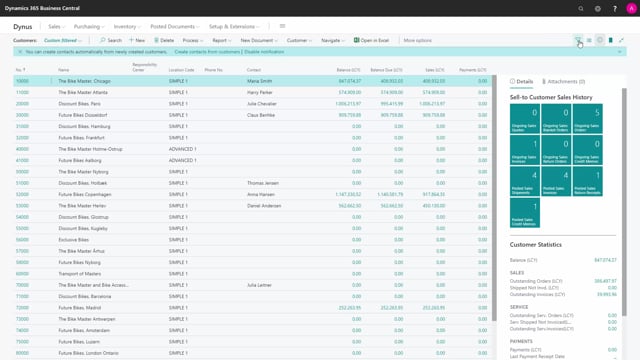


In Business Central you can filter an option field on more than one value at the same time. This lets you combine several statuses in a single filter instead of looking at each value separately. For example, on the customer list you can filter the Blocked field to show customers that are blocked for both Ship and Invoice at once.
Filtering an option field on several values in Business Central
Option fields in Business Central hold a fixed set of values. The Blocked field on the customer card is a good example, with options such as Ship, Invoice and All. Sometimes you want to see records that match more than one of these values, and you can do that directly in the filter pane.
Open the customer list and select the filter pane. From there you add a filter on the Blocked field. Instead of choosing a single value, you can enter several of the option values so the list shows customers that are blocked for shipping and for invoicing at the same time.
This is a small but practical trick. It saves you from running separate filters for each status when you want an overview of customers that are blocked in any of several ways.
Q&A
Can you filter on more than one value in an option field in Business Central?
Yes. In the filter pane you can enter several of the option values for the same field, so the list shows records matching any of those values.
How do you filter customers that are blocked for both shipping and invoicing?
Open the customer list, select the filter pane and add a filter on the Blocked field. Choose both the Ship and Invoice values, and the list shows customers blocked for shipping and invoicing at the same time.