
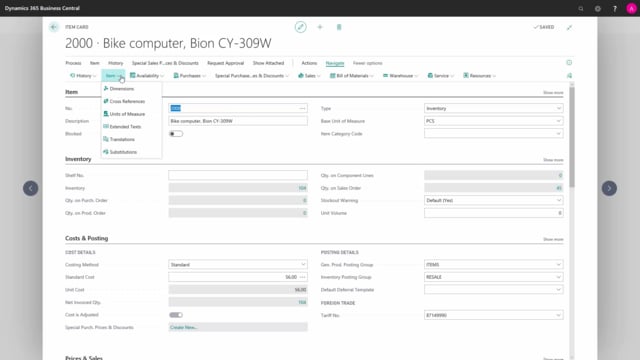


Cross references in Microsoft Dynamics 365 Business Central let you store vendor and customer item numbers, as well as barcodes, on the item card. You set them up under Navigate, Item, Cross References.
You define a cross-reference type as Vendor, Customer, or Barcode. For vendor and customer types, you specify the vendor or customer number, then enter the number that partner uses for the item. You can also tie a cross reference to a specific variant code or unit of measure.
If you fill in the description field on a cross reference, that text transfers automatically to document lines. If you leave it blank, Business Central uses the item description from the item card instead.
You can add as many cross references as you need on each item, including separate barcodes for each unit of measure.
What cross references are used for in Business Central
Cross references let you store a vendor’s or customer’s own item number on your item. When your vendor or customer uses a different number for the same product, you record that number as a cross reference so the system can recognise it.
Cross references are also how you store barcodes in the system. Both functions live in the same place on the item card.
Where to set up cross references on the item card
You find the setup on the item card under Navigate, Item, and then Cross References. From there you create one line per cross reference.
Setting up a vendor or customer cross reference
Start by choosing the cross-reference type. You can pick between Vendor, Customer, or Barcode.
If you choose Vendor or Customer, you enter the vendor number or customer number in the cross-reference type number field. In the cross-reference number field, you enter the number that the vendor or customer uses for the item.
You can also define the cross reference based on a specific variant or unit of measure, so the right number applies in the right context.
Using the description field to control document text
The description field gives you the option to write a text for the cross reference. If you fill in this text, it transfers automatically to the document lines when you enter this item for that vendor or customer.
If you leave the description blank, Business Central transfers the standard item description from the item card to the document line instead.
Adding barcodes as cross references
To add a barcode, create a new line and choose Barcode as the type. You then enter the actual barcode number in the cross-reference number field.
You can base the barcode on a variant or unit of measure as well. This lets you add a separate barcode for each of your unit of measure codes.
You can add as many cross-reference types as you want on each item, so there is no limit to how many vendor numbers, customer numbers, and barcodes you keep on a single item.
Q&A
What can you store as a cross reference in Business Central?
You can store vendor item numbers, customer item numbers, and barcodes as cross references on the item card.
Where do you set up cross references in Business Central?
You set them up on the item card under Navigate, Item, Cross References.
What happens if you fill in the description field on a cross reference?
The description text transfers automatically to the document lines when you use that item for the relevant vendor or customer. If you leave it blank, the standard item description from the item card is used instead.
Can you add a separate barcode for each unit of measure?
Yes. You can base a barcode cross reference on a specific variant or unit of measure, which lets you assign a barcode to each unit of measure code.
How many cross references can you add to an item?
You can add as many cross-reference types as you want on each item.