
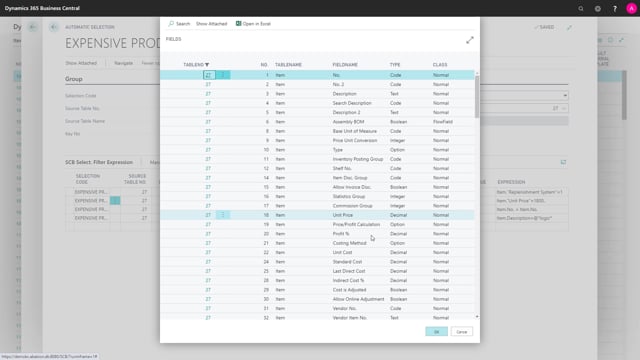


Better Forecast lets you build automatic selections that filter items based on the criteria you choose. Instead of picking items one by one, you set up filters on fields like unit price, replenishment system, and description, and the system pulls in every item that matches.
You set up the filter inside the selection by pointing to specific fields on the item table. For example, you can filter on field 18 (unit price) to include only items priced from 1800 and up, and on the replenishment system field to include only production orders.
You can combine several criteria in the same selection. This means you can create many different selections, each importing exactly the items you want to view based on the parameters that matter to you.
Setting up an automatic selection in Better Forecast
An automatic selection in Better Forecast works by reading the item table and importing every item that matches the filter you define. You don’t add items manually. You describe the criteria, and the selection keeps itself up to date with the items that fit.
In this example, the selection is called “expensive production”. The idea is to capture items that are both costly and produced in-house. To do that, you set up a few criteria:
- The item must cost more than 1800
- The item must be a production item
- You can extend the filter further, for example by requiring that part of the name or description matches a specific value
How the filter fields work
When you open the selection, you see a set of table lines that define what the selection looks at. These lines reference the item table and the specific fields you want to filter on.
The parameters in this example look like this:
- Field 18 (unit price): set to include items with a unit price from 1800 and up
- Replenishment system: set to production order, so only manufactured items are included
- Description: filtered so that a chosen text value must be part of the item before it joins the selection
Once the filter is in place, you update the forecast and the selection displays only the items that meet all the criteria.
Why automatic selections are useful
The strength of automatic selections is that they scale. You define the parameters once, and the system handles the rest. As items change or new ones are added, the selection reflects whatever currently matches your filter.
This makes it practical to create several focused selections side by side, each built around a different combination of parameters. You can view exactly the slice of items you care about without maintaining manual lists.
Q&A
What is an automatic selection in Better Forecast?
An automatic selection reads the item table and imports every item that matches the filter criteria you define. You set up the parameters once, and the selection automatically includes all items that fit, rather than requiring you to add items manually.
Which fields can you filter on in a Better Forecast selection?
You can filter on any field on the item table. Common examples include field 18 (unit price), the replenishment system field, and the description field. You can combine several criteria in one selection.
How do you filter items by price in Better Forecast?
Add a filter line referencing the unit price field (field 18 on the item list) and set the range. For example, set it to include items with a unit price from 1800 and up.
Can you create more than one selection?
Yes. You can create many different selections, each built around its own combination of parameters, so you can view exactly the items you want for each scenario.