
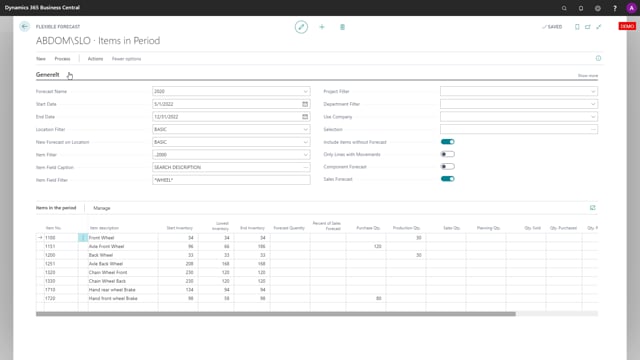


When you work with the flexible forecast in your Microsoft business solution and view many items in the same view, you can use filters to reduce the number of items shown. You can apply a simple item filter to limit the items to a specific interval. You can also use the item field caption and item field filter functionality to filter on a field from the item table, such as the short description, and show only items that contain a specific word like “wheel”. Reducing the number of items also simplifies the forecast calculations.
Filtering items in the flexible forecast
When you work with the flexible forecast and view many items at once, for example the forecast for one period across all items, the view can quickly become cluttered. Adding filters lets you reduce the number of items you see and focus on what is relevant.
The simplest way is to use an item filter. You set the filter to whatever interval of items you want to view, and it applies directly to the lines shown in the forecast below. Change the filter whenever you need a different range of items.
Using the item field caption and item field filter
You can also filter on a specific field from the item table using the item field caption and item field filter functionality. This is a straightforward way to narrow down your view based on item data.
You pick the field you want to filter on, for instance the short description, and then enter the value to filter by. For example, you can specify that the description needs to contain the word “wheel”. When you update the forecast, it shows only the items that include that word.
Filtering this way has a practical benefit beyond a cleaner view: with fewer items in scope, the forecast calculations become simpler and lighter.
When to use selection instead
For more advanced filtering, there is also a selection feature. Selection handles more complex searches, and it is covered separately. If you just need a simple search on items, the item filter and the item field filter are all you need.
Q&A
How do I reduce the number of items shown in the flexible forecast?
Add a filter to limit which items appear. You can use a simple item filter to show a specific interval of items, or use the item field filter to filter on a field from the item table. The filter applies to the lines shown in the forecast below.
How do I filter forecast items by a word in the description?
Use the item field caption and item field filter functionality. Choose the short description field from the item table, then enter the value to filter by, such as the word “wheel”. When you update the forecast, only items whose description contains that word are shown.
Does filtering affect forecast performance?
Yes. When you filter to show fewer items, the forecast calculations become simpler because there are fewer lines to process.
What should I use for more complex item searches?
Use the selection feature, which is built for more complex searches. For simple searches on items, the item filter or the item field filter is enough.