
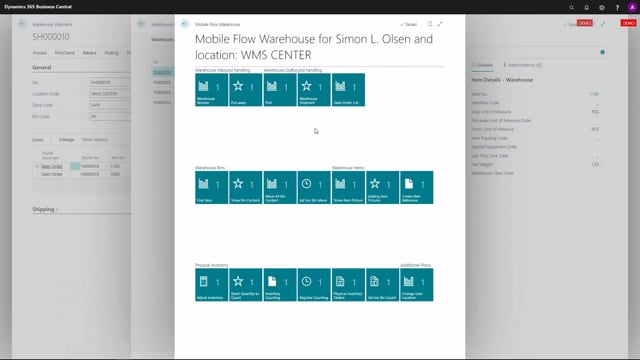


The mobile flow pick in Microsoft Dynamics 365 Business Central guides a warehouse worker through a warehouse pick document on a handheld scanner device. You select the pick document, scan the item and bin codes to confirm them, enter or accept the prefilled quantity, and register the pick when you are done.
Before you can use the mobile flow pick, you must create a warehouse pick and set the quantity to handle to zero. You do this when you create the pick from the shipment, so the work can be handled entirely on the scanner instead.
When you register the pick, the system posts it and moves the items to the shipping zone. The pick lines then disappear from the warehouse shipment filter and appear under the registered pick lines.
What the mobile flow pick does in Business Central
The warehouse pick, or mobile flow pick, is a flow that guides the user through a warehouse pick document around the inventory. It walks the worker step by step through picking items from the right bins using a scanner device.
If you want to use the flow this way, you need to have prepared a warehouse pick first. When you create the pick, make sure the quantity to handle is set to zero. This is part of creating the pick from the shipment: you select quantity to handle as zero because you want to handle the actual picking through the scanner device on the mobile flow functionality.
How to run a pick on the scanner
Selecting the pick makes it possible to choose whichever pick documents you have available. As a user, you can change the sorting method to control how the bins are sorted in your pick. You can also assign yourself a user ID if you want to let everyone else know that you are running this particular pick.
The flow then guides you through the steps:
- It directs you to the first bin, for example bin 55.06, and the first item number.
- You scan the item, such as item 1100, to confirm it.
- You scan the bin code to confirm it.
- You enter the quantity, or simply accept the value that is prefilled, for example six.
- You move on to the next item and the next bin, confirming the quantity each time.
At the end, you register the pick. The pick is then posted and the items are put on the shipping zone.
What happens after you register the pick
Once you register the pick, the results are visible back in Business Central. If you go back to the filter for the warehouse shipment, you will see there are no pick lines left. You can instead filter or open the registered pick lines, where you can see that the lines have been registered through the flow.
Q&A
What is the mobile flow pick in Business Central?
It is a flow that guides a warehouse worker through a warehouse pick document using a handheld scanner. You scan items and bins, confirm quantities, and register the pick to post it and move the items to the shipping zone.
What do I need to prepare before using the mobile flow pick?
You need to have created a warehouse pick. When you create the pick from the shipment, set the quantity to handle to zero, since you will handle the picking on the scanner device instead.
Why should the quantity to handle be set to zero?
Because you want to handle the quantity through the scanner device on the mobile flow, not when you create the pick. Setting it to zero leaves the work to be done on the device.
Can I control the order in which bins are picked?
Yes. As a user you can change the sorting method to determine how the bins are sorted in your pick. You can also assign yourself a user ID to show that you are running the pick.
What happens when I register the pick?
The pick is posted and the items are placed on the shipping zone. The pick lines disappear from the warehouse shipment filter, and you can view the completed lines under the registered pick lines.