
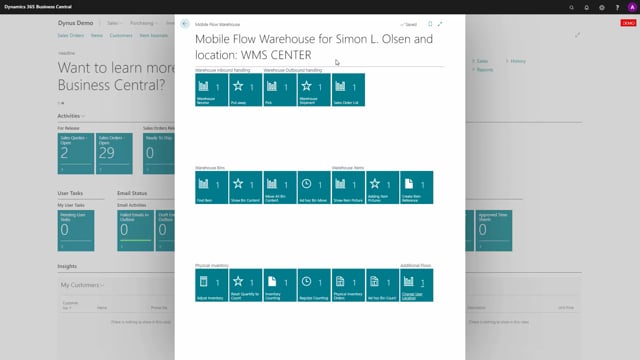


Warehouse Mobile in Microsoft Dynamics 365 Business Central reduces the number of registrations you make when receiving goods. When you receive on a purchase order, you can enter the item number directly without knowing the order number. The system finds the matching warehouse receipt automatically if the item appears on only one receipt line, and gives you a lookup to choose from if it appears on more than one.
The flow skips steps it can fill in for you. When you enter the item number up front, Warehouse Mobile goes straight to asking for the quantity instead of asking you to scan the item again. For serial number handled items, it asks for the serial number but not the quantity, because the quantity for a serial number is always one.
Avoiding unnecessary registrations in Warehouse Mobile
A lot of work has gone into making Warehouse Mobile avoid unnecessary registrations. The goal is to make the flow as smart as possible so you don’t click through steps the system can already answer for you.
The clearest example is receiving on a purchase order. In a normal receiving situation you might not know the order number. With Warehouse Mobile you don’t need it. You can enter the item number directly, and the app finds the warehouse receipt for you.
How automatic warehouse receipt matching works
When you enter an item number, Warehouse Mobile checks the warehouse receipts:
- If the item number appears on only one warehouse receipt line, the app selects that receipt automatically.
- If the item number appears on more than one warehouse receipt, you get a lookup so you can select the right one.
This shortcuts the process. You don’t have to know or look up the order number to get started.
Skipping steps in the line loop
Once you have entered the item number, the flow continues differently from the normal line loop. After you state the user, the app asks you for the quantity to receive. It already knows which item you’re working with, so it skips the first part of the normal line loop.
In the normal line loop you would select or scan an item number, state the quantity, and then come back to the item again. By entering the item number up front, you avoid those extra clicks.
Serial number handled items skip the quantity step
The same logic applies to serial number handled items. Say you don’t know the purchase order but you do know the item number, and the item is handled by serial number. You enter the header information and start the flow. With item number 5000, for example, the app asks you for the serial number but not for the quantity.
The reason is simple. For a serial number item, the quantity has to be one. There’s no point asking you for information the system already knows. This is another example of cutting out registrations that aren’t necessary.
Q&A
Do I need the purchase order number to receive goods in Warehouse Mobile?
No. You can enter the item number directly. Warehouse Mobile finds the matching warehouse receipt for you. If the item is on only one receipt line, it’s selected automatically. If it’s on more than one, you get a lookup to choose from.
Why does Warehouse Mobile skip the quantity step for some items?
For serial number handled items, the quantity is always one. The app asks you for the serial number but skips the quantity question, because it already knows the answer.
How does entering the item number up front save clicks?
When you enter the item number first, the app skips the part of the normal line loop where you would scan or select the item. It goes straight to the quantity step, so you avoid repeating registrations.