
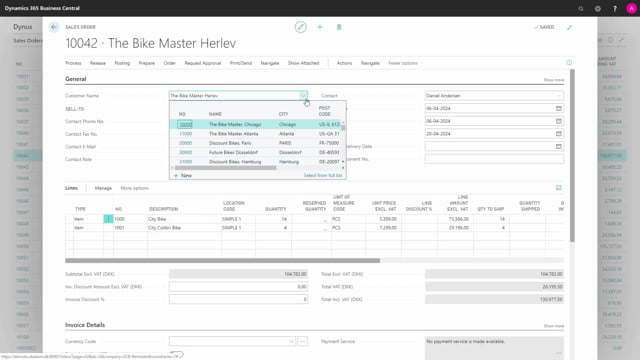


When you create a sales order in Business Central, the document fills in most of its fields automatically. The header pulls data from the customer, and the lines pull data from the item. You only need to fill out a handful of fields yourself: the customer, the relevant dates, and the items with quantity and price.
If your system uses automatic number series, the sales order number is set for you. If not, you enter it manually.
The order date controls the calculation of the due date, so check that it is correct. The shipment date is either calculated from the delivery date plus lead time or set as your best estimate of when you want to ship.
On the lines you can sell an item, a G/L account, a resource, a fixed asset, or a charge item. Once the quantity is filled in and the unit price is confirmed, the order is ready to print and send.
Most fields on a sales order are filled in automatically
When you open a sales order, the number of fields on the document can look overwhelming. In practice, most of them are filled in for you. The fields in the header come from the customer card, and the fields on the lines come from the item. You only need to handle a few fields yourself when you create the order.
Setting the sales order number
If your system has been set up to use automatic number series, the sales order number is assigned automatically when you create the document. If automatic number series is not in use, you enter the number manually.
Choosing the customer
You need to specify which customer the order is for. You have two options. You can use the look-up in the customer field and choose the customer you want, or you can type the customer number directly into the field. Once the customer is set, several fields and dates on the document are filled in automatically based on the customer card.
Checking the order date and the due date
A few dates are set on the document automatically, and you can change them. The order date is the date from which the due date is calculated. Because it drives that calculation, review the order date and make sure it is correct before you continue.
Setting the shipment date
The shipment section contains the shipment date. This is either calculated from the delivery date plus the lead time, or you set it yourself as your best estimate of when you want to ship the order.
Adding items to the order lines
On the lines you specify what you want to sell. The line type can be an item, a G/L account, a resource, a fixed asset, or a charge item.
After choosing the type, you specify the number. You can type it directly or use the look-up to find what you want to sell. Then you enter the quantity the customer wants to buy.
If a unit price has been set up on the item card, it is filled in on the line automatically. If you need to change the price for this order, you do it on the line.
Sending the sales order to the customer
Once you have filled in the required fields, the customer, the dates, and the items with quantity and price, the order is complete. You can then print and send the document to the customer.
Q&A
Which fields do you need to fill out manually on a sales order in Business Central?
You need to set the customer, review the dates such as the order date and shipment date, and add the items with their quantity and price. Most other fields are filled in automatically from the customer card and the item card.
How is the sales order number set?
If your system uses automatic number series, the number is assigned automatically when you create the order. If not, you enter it manually.
How can you select the customer on a sales order?
You can use the look-up in the customer field and choose the customer, or you can type the customer number directly into the field.
Why does the order date matter?
The order date is the date from which the due date is calculated, so you should review it and make sure it is correct.
How is the shipment date determined?
The shipment date is either calculated from the delivery date plus the lead time, or you set it yourself as your best estimate of when you want to ship the order.
What line types can you add to a sales order?
A line can be an item, a G/L account, a resource, a fixed asset, or a charge item.
Where does the unit price on the line come from?
If a unit price is set up on the item card, it is filled in on the line automatically. You can change it on the line if needed for the order.