
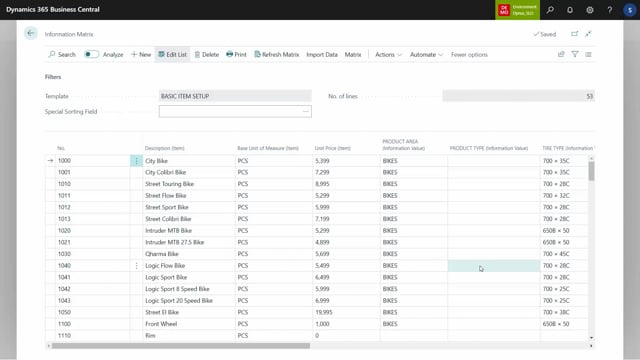


You can update master data in Microsoft Dynamics 365 Business Central directly in the information matrix, either one field at a time or as a mass update across many records at once. The functions “Add Values to Line” and “Add Number Series to Line” let you set the same value on hundreds or thousands of items, customers, or vendors in one operation.
The matrix validates every value you enter against the item card and the underlying master data, so you cannot save data that the system would otherwise reject. For example, you cannot change the base unit of measure on an item if entries already exist for it.
The mass update functions are powerful, which also makes them risky. They can overwrite large amounts of data in seconds. You should control which users have permission to use them.
Updating master data directly in the information matrix
You can edit data directly in the information matrix instead of opening each item card individually. After importing a batch of lines, you can scroll through them and see fields such as the product type for each item, for example a tire, back wheel, metal parts, or accessories.
If a record is missing a value, you can fill it in on the spot. Say your front wheel has no product type. Because the field is an information value with a lookup, you can drill down into the information value list from the master data and select the right value. When you do this, the matrix updates the master data beneath the item, for example item number 1100.
You can also update fields that live directly on the item. If the unit price on the item card shows 1,000, you can change it to 1,200 in the matrix, and it updates the item card directly.
Built-in validation prevents invalid data
The matrix validates the data both against the item card and against the master data as you enter it. This means you cannot type in a value that the system would not otherwise accept.
A concrete example is the base unit of measure. If you try to change the base unit of measure on the front wheel from its current value to a box, the system gives you an error message. The change is not allowed because entries already exist for that item. The same validation rules that apply on the item card also apply in the matrix, so you cannot do anything through the matrix that you could not do directly on the card.
Mass updating data with Add Values to Line
When you need to set the same value on many records, the mass update functions save a lot of time. Suppose you want to add the product area “Bike” to all your touring bikes and other bikes.
You have two ways to build the selection. You can import only the items that should get the value, or you can import a broader set and filter or delete the lines you do not want. For instance, you can import every item that contains the word “bike” in its description, which might return seven records.
Check the list before you run the update. In this example, the bike computer, helmet, and saddle also contain “bike” in their description, but they should not get the product area value. You can leave those out and update only the remaining records. In a real scenario, this could be thousands of item numbers.
To run the update, you copy the product value, select Add Values to Line, and confirm. The function automatically creates a list of the columns you see in the matrix, based on your template. If you select a different template, the available lines change accordingly. You can paste the value, for example “Bike”, or look it up if it is an information value. When you press OK, the system asks you to confirm, since it is about to change your data. Once you confirm, it mass updates all the selected records.
In the past, a task like this would have required a developer. Now you can do it yourself directly in Business Central.
Where mass update works and how to use it safely
The mass update functionality works anywhere you use the information matrix. You can mass update items, customers, vendors, and other records the same way.
Because the function can change so much data at once, treat it with care. You can really mess up your data if you use it without thinking, so be deliberate about which users you give permission to run it.
Q&A
Can I update master data directly in the information matrix in Business Central?
Yes. You can edit fields directly in the matrix, both fields on the item card and master data values. You can drill down into information value lists with a lookup and select the correct value, and the matrix updates the underlying master data.
Does the information matrix validate the data I enter?
Yes. The matrix validates every value against both the item card and the master data as you enter it. You cannot save a value the system would otherwise reject. For example, you cannot change the base unit of measure on an item if entries already exist for it.
How do I mass update many records at once?
Use the “Add Values to Line” function. Build your selection of records, copy the value you want to set, select Add Values to Line, choose or paste the value, and confirm. The function applies the value to all selected records in one operation.
Which record types can I mass update with the information matrix?
You can mass update items, customers, vendors, and any other records that use the information matrix.
What should I watch out for when using mass update?
The function can change a large amount of data at once, so it can do real damage if used carelessly. Check your selection before running the update, and control which users have permission to use the functionality.