
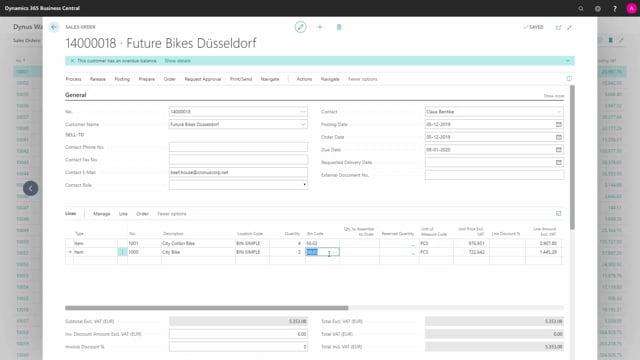


This article walks through the basic warehouse pick flow in Microsoft Dynamics 365 Business Central when you use a location set up with bin mandatory but without directed pick and put-away. You pick directly on the sales order line, you do not create a separate warehouse pick document.
To set this up, you enable bin mandatory on the location card and pick directly on the sales order. When you post, Business Central creates both warehouse entries and item ledger entries.
On each sales order line, Business Central suggests a default bin code. You can look up the bin content for an item and see how the stock is spread across multiple bins.
You can print a pick instruction directly from the sales order. The pick instruction lists the sales order lines and the bin codes, and the warehouse staff record what they picked. If they take from a different bin than suggested, you update the bin code on the line before you post.
Location setup with bin mandatory
The starting point is a location set up only with the checkmark for usage of bin, which means bin mandatory. There is no directed pick and put-away on this location. With this setup, you create a sales order, pick directly on the sales order, update the sales order line, and post. Posting creates warehouse entries and item ledger entries.
Creating the sales order and selecting bins
Create a new sales order for the customer and add the item lines. In this example there are two different items, with a quantity of 4 and 2.
Business Central defaults a suggested bin code for where to pick each item. You can also look up the bin content directly from the line. The list shows where the item is stored, so you can see that item 1001 is placed on two bins, and item 1000 is placed on three different bins.
Printing the pick instruction
From the sales order you can print the picking document. It is found in the menu and is called a pick instruction. It is meant for a simple pick for the warehouse people, based directly on the order document.
The pick instruction reflects the sales order lines and shows which bin codes to find the items on. The warehouse worker enters the bin manually if needed, records the quantity picked on the right-hand side, and records the quantity shipped when shipping.
Updating bins before posting
Back in Business Central, you get the pick instruction back from the warehouse. The user may have taken the item from a different bin for some reason. You update the bin code on the sales order line to match what was actually picked, and then you post.
Q&A
What does bin mandatory mean on a location in Business Central?
Bin mandatory means you enable only the usage of bin checkmark on the location card. This requires a bin code on transactions but does not turn on directed pick and put-away. You pick directly on the sales order rather than through a separate warehouse pick document.
What does Business Central post when you pick directly on a sales order with bin mandatory?
When you post the sales order, Business Central creates both warehouse entries and item ledger entries.
How do you see which bins an item is stored in on a sales order line?
Business Central suggests a default bin code on the line, and you can look up the bin content from the line. The list shows every bin where the item is stored along with the quantity in each.
What is the pick instruction in Business Central used for?
The pick instruction is a picking document you print directly from the sales order. It lists the sales order lines and the bin codes so warehouse staff can do a simple pick based on the order document, and record the quantity picked and shipped.
What do you do if a warehouse worker picks from a different bin than the one suggested?
You update the bin code on the sales order line to match the bin that was actually picked, and then post the order.