


If your warehouse users can’t see warehouse shipments after creating them, the most common cause is that the user isn’t set up as a warehouse employee for the relevant location in Microsoft Dynamics 365 Business Central.
You can create a warehouse shipment header from a released sales order even if you’re not registered as a warehouse employee. The system confirms the header was created, but it won’t appear in your warehouse shipment list because Business Central filters documents based on your assigned locations.
To fix this, open the Warehouse Employees list and add a setup line for yourself on the relevant location. Once you’re registered on that location, the warehouse shipment becomes visible. This filtering applies to all inventory documents, not just warehouse shipments.
The symptom: a warehouse shipment that disappears after creation
A question we hear often is why warehouse users don’t see their warehouse documents after creating them. The behaviour looks like a bug, but it usually comes down to a single setup detail.
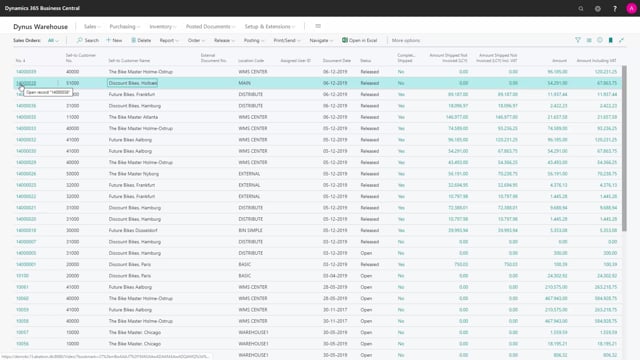
Here’s the typical scenario. You open a released sales order and create a warehouse shipment. The system tells you that one warehouse shipment header has been created. So the header is there. But when it opens, there’s nothing in it. And if you go to your menu and search for the warehouse shipment, you find no warehouse shipment at all.
Why the document is filtered out of your view
The reason is that you aren’t set up as a warehouse employee on that specific location. Business Central lets you create the warehouse shipment header from the sales order regardless of your warehouse employee setup. But the warehouse shipment list is filtered by the locations you’re assigned to. If you’re not set up on the location, the document gets filtered out of your view.
In this example, the document was created on the location called Main, but the user wasn’t registered as a warehouse employee for Main. That’s why it didn’t show up.
How to fix it: add yourself to the Warehouse Employees list
The fix is straightforward. Go into the Warehouse Employees list. There you can see which locations you’re set up on. If you’re missing the relevant location, just create a setup line for yourself on it.
Once you’ve done that, the warehouse shipment shows up. You can navigate to it from the sales order or find it directly in the warehouse shipment list. Either way, it’s now visible.
This applies to all inventory documents
This is a very common mistake, and it isn’t limited to warehouse shipments. The same location filtering applies to all inventory documents. If a document seems to vanish after creation, check your warehouse employee setup for the location before assuming something more serious is wrong.
Q&A
Why can’t I see a warehouse shipment after creating it in Business Central?
The most common reason is that you’re not set up as a warehouse employee for the location the document was created on. The system confirms the header was created, but the warehouse shipment list filters out documents for locations you aren’t assigned to, so it doesn’t appear in your view.
How do I make a missing warehouse shipment visible?
Open the Warehouse Employees list and add a setup line for yourself on the relevant location. Once you’re registered on that location, the warehouse shipment becomes visible both from the sales order and in the warehouse shipment list.
Can I create a warehouse shipment header without being a warehouse employee?
Yes. Business Central lets you create the warehouse shipment header from a released sales order regardless of your warehouse employee setup. The catch is that you won’t be able to see the document afterwards unless you’re set up on the location.
Does this location filtering only affect warehouse shipments?
No. The same filtering applies to all inventory documents. If any inventory document seems to disappear after creation, check your warehouse employee setup for that location first.